There is nothing quite like the excitement of getting a new game. Whether you bought it online, got a gift card, or finally caved and grabbed that title you have been eyeing for months, the feeling right before you start playing is genuinely good. But between that moment of getting the game and actually playing it sits a process that many people find confusing, frustrating, or just unexpectedly complicated. Gaming software, launchers, installation processes, drivers, updates, and compatibility requirements can turn what should be a simple experience into an hour of head-scratching.
This blog is going to fix that. We are going to walk through everything you need to understand about gaming software and game installation in plain, simple language. How different gaming platforms work, what the installation process actually involves, how to handle common problems, how to keep everything running well, and what to do when things go wrong. By the end, the technical side of gaming will feel a lot less intimidating and a lot more manageable.
Understanding Gaming Platforms and Launchers
The first thing to understand is that most PC games today do not work as simple standalone programs you install and run directly. They operate through gaming platforms and launchers, which are applications that manage your game library, handle purchases, run updates, connect you to multiplayer servers, and sometimes provide social features like friends lists and chat.
Steam is the most widely used gaming platform in the world for PC gaming. It has a library of tens of thousands of games and is the starting point for most PC gamers. When you buy a game on Steam, it is added to your Steam library. You download and install it through the Steam application. Steam handles updates automatically. It manages your save files. And it provides access to features like achievements, game streaming, and community forums. Steam is free to install and straightforward to use once you understand the basic structure.
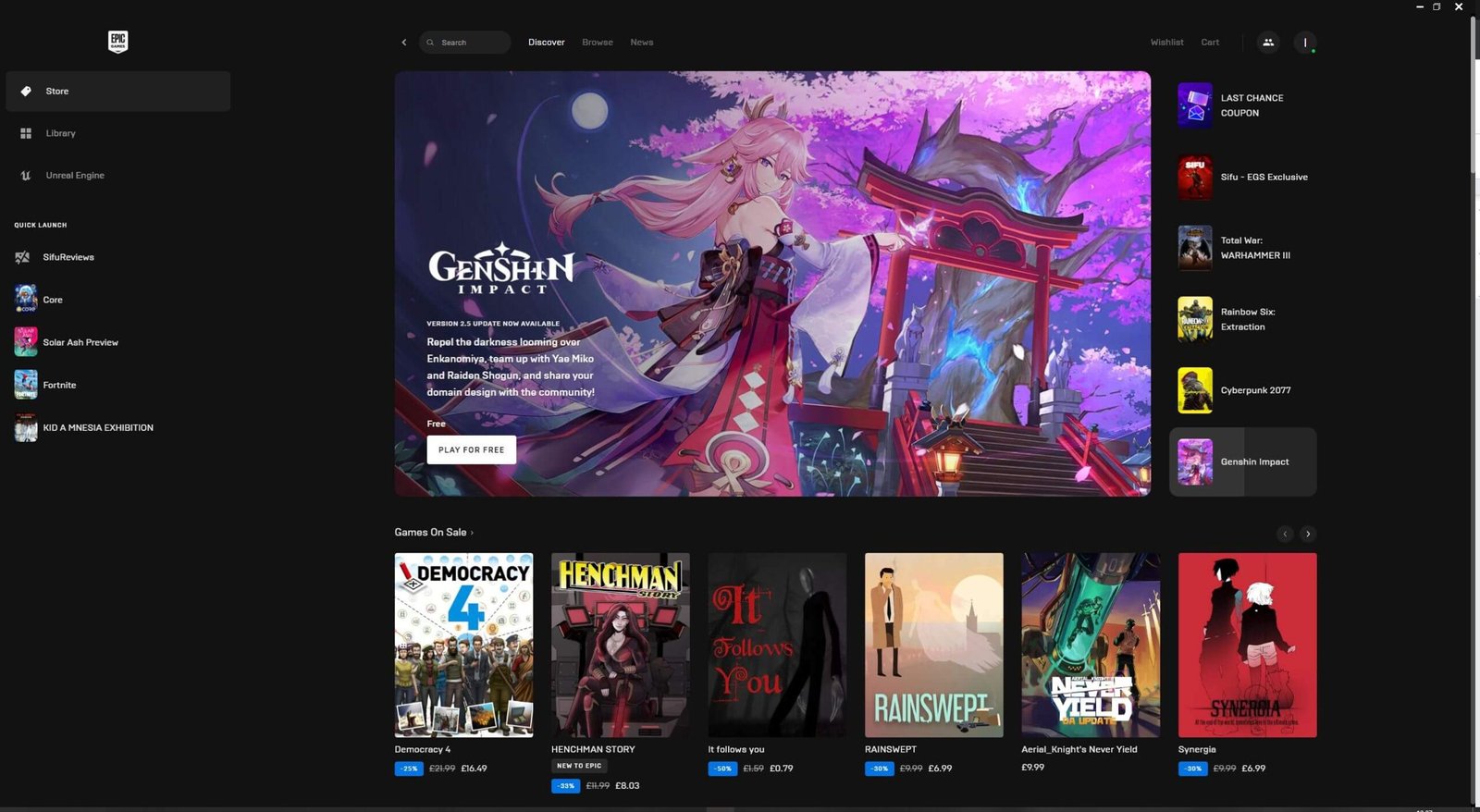
Epic Games Store is Steam’s most significant competitor and has gained considerable ground in recent years, partly by offering free games on a regular basis. If you have picked up free games from Epic’s giveaways, you need the Epic Games launcher installed to play them. The interface is different from Steam but the concept is the same.
GOG Galaxy is another platform worth knowing about, particularly for its approach to older games. GOG specialises in making classic games compatible with modern systems and sells games without the digital rights management restrictions that some other platforms use. GOG Galaxy also has a feature that connects your libraries from multiple platforms in one place, which is useful if you have games spread across Steam, Epic, and other services.
EA App is Electronic Arts’ own launcher and is required for EA games like FIFA, The Sims, Battlefield, and others. Similarly, Ubisoft Connect is the launcher for Ubisoft games like Assassin’s Creed and Far Cry. Activision Blizzard has Battle.net for games like World of Warcraft and Call of Duty. If you play games from these publishers, you will need their respective launchers installed.
On console, the situation is simpler because PlayStation, Xbox, and Nintendo each have their own built-in stores and the console’s operating system handles installations directly. PlayStation Network, Xbox Live, and Nintendo eShop all work through the console interface without needing a separate launcher application.
What Actually Happens During Game Installation
Many people click install and wait without thinking about what is actually happening, which makes it harder to understand problems when they occur. Here is what the installation process is actually doing.
When you initiate a game installation from a platform like Steam, the platform first verifies that you own the game and checks the available storage on your system. It then begins downloading the game files from servers to your computer. Modern games are large, sometimes very large. Games regularly require 50 to 100 gigabytes of storage and some titles go well beyond that. This is why installation takes time and why having enough storage space is something to check before you start.
After downloading, the files are extracted and organised into the correct folder structure on your drive. Compressed game files are unpacked during this stage, which is why the final installed size is sometimes larger than the download size. The platform then writes necessary registry entries, creates shortcuts, and verifies the integrity of the installed files to make sure nothing was corrupted during the download.
Some games also run additional installation steps for components they depend on. DirectX components, Visual C++ redistributable packages, and PhysX are examples of system-level dependencies that many games install separately during this phase. You might see brief additional installation windows appearing during this process. This is normal.
After installation completes, most games will check for and download any updates that have been released since the version you downloaded was packaged. Even a freshly installed game may need to download patches before it is ready to play, which is why the process can seem to take longer than expected.
Storage: What You Need to Know
Storage is one of the most practical concerns for anyone who plays multiple games. Modern games are large and storage fills up faster than most people anticipate.
The type of storage matters as much as the amount. Traditional hard disk drives are much slower than solid state drives. On an older spinning hard drive, game load times can be painfully long, particularly in open-world games that are constantly loading new areas. On a solid state drive, the same games load dramatically faster. If you are building or buying a gaming PC, prioritising an SSD for your primary gaming drive makes a noticeable real-world difference in your gaming experience.
Managing storage across a large game library means being willing to uninstall games you are not currently playing and reinstalling them when you want to play again. Most platforms make this easy because your purchases stay in your library permanently. Uninstalling a game does not mean losing it. You just need to reinstall it when you want to play, which is simple if you have a reasonable internet connection.
External drives are a practical option for expanding storage. Games can be installed on external drives and played from them, though the same speed difference between HDD and SSD applies. An external SSD connected via USB is a decent solution for overflow storage, though slightly slower than an internal drive.
Drivers and Their Role in Gaming Performance
Graphics drivers are one of the most important and most overlooked aspects of the gaming software environment. Your graphics card, whether from Nvidia or AMD, requires driver software to communicate with your operating system and with games. Outdated or incorrectly installed graphics drivers are responsible for a significant proportion of gaming crashes, visual glitches, and performance problems.
Both Nvidia and AMD provide free tools for managing driver updates. Nvidia GeForce Experience and AMD Adrenalin are the respective applications, and both can be set to notify you when new drivers are available. When a major new game releases, graphics card manufacturers typically release new driver versions that are optimised for that game. Installing these before playing a new title is a good habit.
Updating drivers is generally straightforward but there is one piece of advice worth highlighting. If you are installing a new driver version and you are having significant issues with your current one, doing a clean installation of the new driver rather than just updating over the existing one often resolves problems that a standard update would not. Both the Nvidia and AMD installers offer a clean installation option that removes existing driver files before installing fresh ones.
Beyond graphics drivers, audio drivers, chipset drivers, and network drivers all play a role in the overall stability of your gaming environment. Keeping your system drivers generally up to date is good practice, though you do not need to obsessively update every driver the moment a new version is available.
Common Installation Problems and How to Solve Them
Even when you do everything correctly, game installation sometimes runs into problems. Knowing the most common ones and their solutions saves a lot of frustration.
Slow download speeds are probably the most frequently experienced issue. Before assuming something is wrong with the game or platform, check your internet connection speed and compare it to what you are seeing in the download. Other devices on your network streaming video or doing their own downloads can significantly impact available bandwidth. If possible, using a wired ethernet connection rather than WiFi gives more stable speeds for large downloads.
Installation failures part way through often indicate either a corrupted download or a storage issue. Most platforms have a built-in option to verify the integrity of game files, which checks whether the downloaded files are complete and correct and redownloads any that are corrupted or missing. On Steam, right-clicking a game in your library and selecting Properties, then Local Files, then Verify Integrity of Game Files does this check automatically.
Insufficient storage space errors are common because people underestimate how large modern games are. The solution is straightforward: free up space by uninstalling games or other files you do not need, or add additional storage.
Permission errors on Windows occur when the installation process does not have the rights to write to the folder it is trying to use. Running the platform or installer as administrator, which you can do by right-clicking the application icon and selecting Run As Administrator, often resolves this.
Games that launch but then crash immediately can have several causes. Outdated graphics drivers are a common culprit. Missing system dependencies like Visual C++ redistributables or DirectX components are another. Antivirus software occasionally flags game files as suspicious and quarantines them, preventing the game from loading properly. Checking whether your antivirus has quarantined anything, and if necessary adding the game’s installation folder to the antivirus exclusion list, resolves this category of problem.
Keeping Your Games Updated and Running Well
Once games are installed, keeping them running well over time involves a few simple habits.
Allow automatic updates to run. Most gaming platforms can update games automatically when they are not being played. Keeping games updated ensures you have the latest bug fixes, performance improvements, and security patches. For multiplayer games specifically, being on the current version is often required to connect to game servers.
Periodically verify game files for games you play regularly, particularly if you notice unusual behaviour or crashes that were not present before. This is especially useful after a failed update or if your computer lost power during an installation or update process.
Keep your gaming platform software updated as well. Steam, Epic, and other launchers receive their own updates that improve stability and add features. These typically happen automatically but are worth checking if you are experiencing platform-level problems.
Monitor your storage and maintain some free space at all times. Drives that are completely full can cause performance problems and occasionally cause data issues. Keeping at least ten to fifteen percent of your gaming drive free is a reasonable guideline.
Mobile Gaming and App Installation
It is worth briefly addressing mobile gaming since a very large proportion of gaming happens on smartphones, particularly in India where mobile gaming has seen enormous growth.
On Android devices, most games are installed through the Google Play Store. The Play Store handles downloads, installation, and updates automatically. Some games also have separate files called OBB files or additional data packs that download after the initial app installation. These are normal and the game will guide you through downloading them on first launch.
On iOS devices, the App Store is the equivalent platform. Apple’s system is more controlled and all games must come from the App Store on unmodified devices.
One thing to be aware of in mobile gaming is storage management. Games with high-quality graphics and assets can be very large on mobile devices too, and the internal storage on many affordable smartphones fills up relatively quickly. Knowing how to check what is using your storage and uninstalling games you no longer play regularly will keep your device running smoothly.
A Few Final Thoughts
Gaming software and game installation are genuinely not as complicated as they can feel the first few times you encounter problems. Most issues have straightforward solutions. Most processes follow a logical sequence once you understand what is happening and why.
The most important habits are keeping your drivers updated, ensuring you have adequate storage space before you start an installation, using the platform’s built-in tools to verify files when something seems wrong, and not panicking when an error message appears without first searching for what that specific error means. A very large proportion of gaming problems have been experienced by millions of people before you and have documented solutions that a quick search will surface.
The goal is to spend your time actually playing rather than troubleshooting. With a basic understanding of how the software layer works, that is exactly what you will end up doing most of the time.