We have all been there. You are in the middle of a video call, the most important one of the month, and suddenly the screen freezes. Your voice turns into a robot, and then silence. The internet is down. Again. In 2026, the internet is not just a utility; it is the invisible foundation of our entire lives. We work on it, we learn on it, we watch movies on it, and our houses are run by it. From the fridge to the doorbell, everything is fighting for bandwidth.
If you are tired of dead zones, buffering wheels, and rebooting your router every Tuesday, it is time to take control. Installing your own networking devices might sound like a job for a technician in a van, but it is actually one of the most empowering DIY projects you can do. You don’t need a degree in computer science. You just need a plan, the right tools, and a free weekend. This guide is going to walk you through the entire process of setting up a professional-grade network in your own home, explained in simple, human English. We are going to move beyond the cheap plastic box your internet provider gave you and build a system that is fast, secure, and ready for the future.
1. Planning Your Network Anatomy: The Blueprint Phase
Before you buy a single cable or drill a single hole, you need a map. Most people skip this step and end up with a mess of wires and poor signal. The first rule of networking is that “Wired is always better than Wireless.” If a device has an Ethernet port (like a TV, a game console, or a desktop PC), it should be wired. This clears up the airwaves for the devices that must be wireless, like your phone and tablet.
Start by identifying your “Central Hub.” This is usually where the internet cable comes into your house from the street. It might be in the garage, a closet, or the living room. This is where your modem and main router will live. Next, walk around your house and count the “Data Points.” Where do you sit when you work? Where is the TV? Where do you want a security camera? Mark these spots on a rough sketch of your floor plan.
In 2026, we also have to think about “interference.” Kitchens are terrible for Wi-Fi because microwaves and metal fridges block signals. Bathrooms are bad because mirrors reflect signals and pipes block them. Your plan should involve placing Wi-Fi broadcasters (Access Points) in open areas, away from these obstacles. Measure the distances roughly. If you need to run a cable 50 feet, buy a 75-foot cable. Slack is your friend; tension is your enemy.
2. The Modem and Router: The Heart and Brain
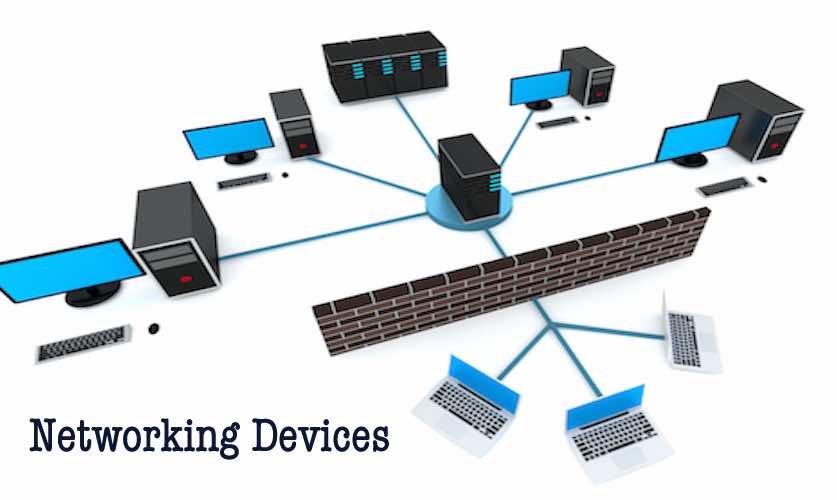
Your network starts with the Modem. This device translates the raw signal from your Internet Service Provider (ISP)—whether it is fiber optic light or cable electricity—into digital data your home can understand. In many cases, your ISP gives you a “Gateway,” which is a modem and router combined into one plastic shell. For a truly great network, we often want to separate these.
The Router is the brain. It assigns addresses (IP addresses) to every device in your house so they don’t get confused. It directs traffic. When you install your router, do not hide it in a metal cabinet or behind a fish tank. Routers need to breathe, and they need to broadcast. Place it as high up as possible. Radio waves travel out and down, like water from a showerhead. Putting a router on the floor is like installing a showerhead at your ankles.
When connecting the two, use a high-quality Ethernet cable (Cat6 or better). Plug the modem into the port marked “WAN” (Wide Area Network) or “Internet” on your router. Once powered on, be patient. These devices take minutes to “handshake” and start talking to the ISP. Wait for the solid lights before you panic.
3. The Switch: Expanding Your Nervous System
Most routers only have four ports on the back. In a modern home with smart hubs, printers, TVs, and computers, you will run out of space instantly. This is where the “Switch” comes in. A switch is essentially a power strip for data. It takes one connection from your router and turns it into 8, 16, or even 24 connections.
Installing a switch is the easiest part of this whole process. It is “plug and play.” You run one cable from a “LAN” (Local Area Network) port on your router to any port on the switch. Suddenly, every other port on that switch is live and ready to deliver internet.
For a 2026 setup, you should consider a “PoE Switch” (Power over Ethernet). These are magical. They send both data and electricity down the same cable. Why does this matter? Because it allows you to install Wi-Fi Access Points or Security Cameras in places where there is no power outlet—like the ceiling or the corner of your roof. The switch powers the device through the network cable itself. It simplifies installation massively because you don’t need to call an electrician; you just need to run a network cable.
4. Wi-Fi Access Points vs. Mesh: The Invisible Web
This is where the magic happens. The old way of networking was to have one router screaming Wi-Fi from the corner of the house, hoping it reached the bedroom. The new way is “Distributed Wi-Fi.” You have two main choices here: Mesh Systems or Hardwired Access Points.
A Mesh System is great for renters or people who cannot run cables. You have a main unit and “satellite” units. They talk to each other wirelessly to pass the signal along like a bucket brigade. To install these, place the main unit near the modem, and place the satellites halfway between the main unit and the dead zone. If you put the satellite in the dead zone, it won’t have a signal to boost. It needs to be in the “Goldilocks zone”—far enough to extend range, but close enough to get a good signal itself.
Access Points (APs) are the professional choice. These are wired directly back to your switch. Because they use a cable for the “backhaul” (the traffic back to the router), they are incredibly fast and stable. In 2026, Wi-Fi 7 is the standard, which uses the 6GHz band. This band is super fast but has short range. Installing APs on the ceiling of every second room ensures you get that blistering speed everywhere. To install an AP, you mount a bracket to the ceiling, plug in that PoE cable we talked about, and twist the device into place. It looks like a smoke detector and provides a blanket of coverage that walls cannot block.
5. Cabling 101: The Arteries of Your Home
The cables you choose matter. In 2026, do not buy “Cat5e” cables. They are obsolete. You want Cat6 or Cat6a. These cables are thicker, better shielded against interference, and can handle speeds up to 10 Gigabits per second. They are the future-proof choice.
Running cable is an art. If you are going through walls, you need a “fish tape”—a stiff wire you push through the wall to pull the cable back. Always label both ends of the cable before you pull it. There is nothing worse than having 10 grey cables sticking out of a wall and not knowing which one goes to the kitchen. Use a label maker or even simple masking tape with a sharpie.
When you terminate the cable (put the connector on), you have two choices: a male plug (RJ45) or a female jack (Keystone). Professionals always use Keystone jacks in the wall. They are easier to install and less likely to break. You use a “Punch Down Tool” to push the 8 tiny color-coded wires into the jack. It snaps them in and cuts off the excess wire in one motion. It is incredibly satisfying. Remember the color code standard: T568B is the most common. Just look at the colors printed on the jack (Orange, Blue, Green, Brown) and match your wires to them.
6. The Installation Process: Getting Your Hands Dirty
Let’s put it all together. Start at the central hub. Mount your patch panel (a row of keystones) or your switch to the wall or a rack. This keeps things tidy. Cable management is not just for looks; it helps airflow. If you have a rat’s nest of cables, heat builds up, and heat kills electronics. Use velcro straps, not zip ties. Zip ties can crush the delicate copper inside the cables if you pull them too tight.
Run your cables to the rooms. If you are drilling through wood studs in the wall, stay in the center of the stud to avoid hitting nails or screws later. If you are running cable outside, use “Outdoor Rated” cable. The sun’s UV rays will destroy normal cable in a year, making the plastic brittle and cracking it.
Once the cables are run and plugged in, connect your devices. Modem to Router. Router to Switch. Switch to Access Points and Wall Jacks. Power everything on one by one, starting from the modem. Let the internet flow like water from the street down to the furthest device.
7. Security Configuration: The Immune System
You have built the body; now you need an immune system. The default settings on your router are not safe. The first thing you must do is change the administrator password. This is not the Wi-Fi password; this is the password to get into the router’s settings. If you leave it as “admin/password,” a hacker can take over your network in seconds.
Next, set up your Wi-Fi security. In 2026, you must use WPA3. It is the latest encryption standard and is much harder to crack than the old WPA2. If you have older devices that don’t support it, there is usually a “WPA2/WPA3 Mixed Mode” option.
A critical step for the modern home is IoT Isolation. Your smart lightbulbs, your connected fridge, and your cheap doorbell camera are security risks. They often have weak security. You do not want a hacker getting into your fridge and then jumping over to your laptop to steal your banking passwords. To stop this, create a “Guest Network” or a dedicated “IoT Network” on your router. Put all your smart home gadgets on this separate network. It gives them internet access but stops them from talking to your main computers and phones. It is a quarantine zone for the untrustworthy gadgets.
8. Optimization and Testing: The Checkup
Just because the lights are blinking doesn’t mean it works well. You need to test. Download a Wi-Fi analyzer app on your phone. Walk around your house. You are looking for “Signal Strength,” measured in dBm. -30 is amazing. -60 is good. If you hit -75 or -80, you have a dead zone. You might need to move an Access Point or add a mesh node.
Run speed tests, but not just next to the router. Run a speed test in the furthest corner of the house. Run one while someone else is streaming a 4K movie. This is a “Stress Test.” It shows you how the network handles load.
Check your “Channel Width.” In the router settings, you can choose how wide your Wi-Fi lane is. For 5GHz and 6GHz, using 80MHz or 160MHz width is like adding more lanes to a highway. It allows for massive speed. However, if you live in a crowded apartment building, wide lanes might pick up more interference from neighbors. Sometimes, a narrower lane (40MHz) is actually more stable and faster because it cuts through the noise better.
9. Troubleshooting Common Issues: The First Aid Kit
Even the best networks have hiccups. If a device cannot connect, check the “DHCP” settings. This is the service that hands out IP addresses. If the “pool” of addresses is full (because you have 50 smart bulbs), new devices can’t join. Increase the pool size in the router settings.
If you have speed but the internet feels “laggy” or websites take a second to start loading, it might be a DNS issue. DNS is the phonebook of the internet. Your ISP’s default phonebook is often slow. Go into your router settings and change the DNS server to a faster, public one like Cloudflare (1.1.1.1) or Google (8.8.8.8). This makes browsing feel snappier instantly.
If your cable isn’t working, it is almost always a bad termination. The tiny copper wires might not be touching the metal contacts in the jack. Buy a cheap “Cable Tester” for $15. You plug it into both ends of the cable, and it lights up 1 through 8. If light #4 doesn’t turn on, you know wire #4 is broken. Cut the end off and try again. It takes patience, but it is better than wondering why Netflix keeps buffering.
10. Future-Proofing for 2030: Looking Ahead
We are building this network for today, but we want it to last. How do we future-proof? First, run more cable than you think you need. If you are opening a wall to run one cable to the TV, run two. Or three. Cable is cheap; labor (opening the wall and painting it again) is expensive. Having a backup cable ready to go is a lifesaver if one breaks or if you buy a new device.
Consider 10 Gigabit equipment. Right now, 1 Gigabit is standard for most homes. But fiber internet speeds are jumping to 2Gbps, 5Gbps, and beyond. Ensure your switch and router have “Multi-Gig” ports (2.5G or 10G). This ensures that when the faster internet arrives in your neighborhood, your internal highway can handle the speed limit.
Finally, document everything. Take a photo of your router settings. Write down which cable goes to which room on a piece of paper and tape it to the modem. In two years, when you have forgotten everything you did today, that piece of paper will be the most valuable thing you own.
Conclusion
Installing your own networking devices is not just about saving money on a technician. It is about understanding the digital nervous system of your home. When you pull that cable, punch down that jack, and configure that security rule, you are building the infrastructure that will support your family’s work, play, and connection for years to come.
It might seem intimidating at first. You might drop a screw. You might miswire a jack and have to do it again. That is part of the process. But when you sit down on your couch, in the corner of the room that used to be a dead zone, and watch a 4K movie start instantly with zero buffering, you will know it was worth it. You have taken back control of your digital life. You have built a network that works for you, not the other way around. Now, go enjoy the speed.