There is a specific feeling that every computer user knows. It is that moment of hesitation when you look at a screwdriver, then look at your expensive laptop or desktop tower, and wonder, “Am I about to make a huge mistake?” For years, hardware companies made us feel like the inside of a computer was a magical, dangerous place that only certified geniuses in lab coats should touch. They put “Warranty Void if Removed” stickers over screws and used strange screws that didn’t fit normal tools. But I have great news for you. In 2026, the era of the locked-down computer is fading. Thanks to the “Right to Repair” movement and better design, upgrading your own PC is easier, safer, and more rewarding than it has ever been.
Building or upgrading a computer is essentially just LEGO for adults. The parts are designed to fit together in only one way. You cannot accidentally plug a graphics card into a memory slot; it simply won’t fit. Once you realize this, the fear disappears. Instead of buying a whole new $2,000 laptop because your old one is feeling slow, you can spend $100 on a new part, grab a screwdriver, and make it run like new in twenty minutes. This guide is going to walk you through the process of installing the most common hardware upgrades for both desktops and laptops. We will use simple English, avoid the confusing jargon, and focus on the practical steps that actually matter. By the end of this post, you won’t just be a user of technology; you will be its master.
Why Upgrading Your Own Hardware is the Best Investment You Can Make
Before we pick up a tool, let’s talk about why you should bother doing this yourself. The obvious answer is money. Computer manufacturers charge a massive premium for upgrades. If you buy a laptop with 32GB of RAM from the factory, they might charge you an extra $400. If you buy the 16GB model and install the extra RAM yourself, it might cost you $80. That is a few minutes of work for hundreds of dollars in savings.
But beyond the money, there is the factor of performance longevity. Computers in 2026 are incredibly powerful. The processor (CPU) in your machine right now is likely good enough to last for five or six years. The thing that usually makes a computer feel “old” or “slow” isn’t the brain; it is the short-term memory (RAM) or the storage speed (SSD). By upgrading these specific parts, you breathe new life into an aging machine. You keep it out of the landfill and keep your wallet happy. Plus, there is a deep satisfaction in pressing the power button and seeing your system boot up instantly because of work you did. It changes your relationship with your tools. You stop fearing them and start understanding them.
The Golden Rules of Safety Before You Touch Anything
Hardware is durable, but it has one invisible enemy: Static Electricity. You know the shock you get when you touch a doorknob after walking on a carpet? That tiny spark is harmless to you, but it can fry a sensitive microchip instantly. Before you open your computer, you need to discharge yourself. You don’t need to buy a fancy anti-static wrist strap unless you want to look professional. In 2026, the easiest way to be safe is to touch a metal object—like a table leg or the metal casing of your PC—before you touch the components. This grounds you and removes the static.
The second golden rule is the “Power Purge.” When you unplug your computer or turn off your laptop, there is still electricity trapped in the capacitors inside. Before you touch anything, unplug the machine from the wall (or disconnect the laptop charger), and then press and hold the power button for ten seconds. You might see lights flash for a second and then die. That is the residual power leaving the system. Now it is safe to work.
Finally, prepare your workspace. You need a clean, well-lit table. Do not build computers on a carpet (remember the static!). Grab a small bowl or a magnetic tray to hold your screws. There is nothing worse than dropping a tiny black screw onto a dark floor and spending an hour looking for it. A standard Phillips-head screwdriver (size PH0 or PH1) is usually the only tool you need for 99% of computers.
Understanding the Anatomy of a Modern Desktop PC
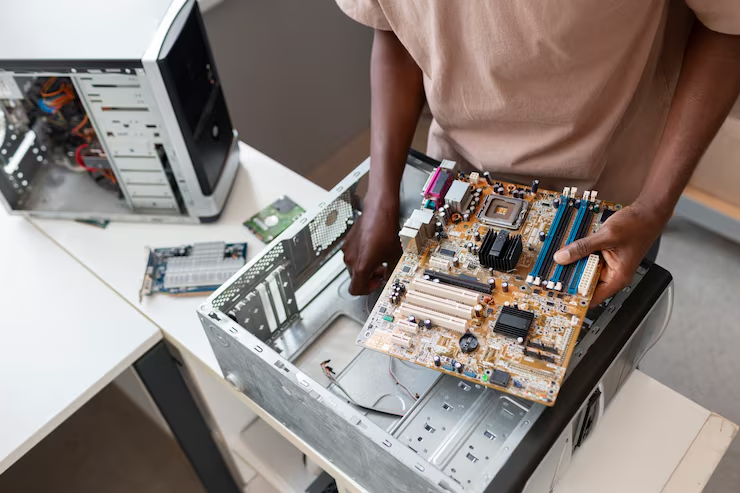
If you are upgrading a desktop tower, take a moment to look inside. Most modern cases have glass side panels that come off with a simple thumbscrew or a latch—no tools required. Once you open it, don’t be overwhelmed by the wires. Look for the big board in the back; that is the Motherboard. It is the nervous system that connects everything.
At the top center is the CPU, usually covered by a fan or a liquid cooler block. To the right of that, you will see long vertical slots; that is where your RAM lives. Below the CPU, you will see horizontal slots; these are PCIe slots for your Graphics Card (GPU) or Wi-Fi cards. And increasingly in 2026, you will see tiny rectangular sticks screwed flat against the board; these are your NVMe SSDs (storage). Everything else is just power cables connecting these parts to the power supply unit (PSU) at the bottom or top of the case.
The beauty of modern desktops is modularity. If you want to add Wi-Fi, you plug in a card. If you want better gaming performance, you swap the GPU. Identifying these slots is half the battle. Once you know where things go, the installation is just a matter of “plug and play.”
How to Install RAM: The Easiest Speed Boost
Installing more RAM (Random Access Memory) is the single easiest upgrade you can perform. If your computer feels sluggish when you have twenty browser tabs open, you need more RAM. In 2026, most desktops use DDR5 or the newer DDR6 memory. These sticks look identical, so check your manual to see which one your motherboard supports; they are not interchangeable.
To install it, look at the slots next to your CPU. You will see little plastic clips or “wings” at the top and bottom of the slot. Push them down to open the slot. Now, look at the RAM stick itself. You will see a line of gold pins on the bottom, with a small notch cut out somewhere in the middle. This notch is the key. It ensures you cannot put the stick in backward. Line up the notch on the stick with the notch in the slot.
Now comes the scary part. You have to push harder than you think. Place your thumbs on the top corners of the stick and push down firmly and evenly. You will hear a loud CLICK sound, and the plastic wings will snap back up to lock the stick in place. If the wings don’t snap up, you haven’t pushed hard enough. Don’t worry, the motherboard is designed to flex a little bit. Just make sure you are lined up correctly, and give it a firm press. If you are installing two sticks, put them in alternating slots (usually slot 2 and slot 4) to enable “Dual Channel” mode, which effectively doubles your speed.
Upgrading Storage: Installing NVMe SSDs Without the Mess
In the old days, installing a hard drive meant dealing with bulky metal bricks and messy cables. Today, storage looks like a stick of gum. These are called NVMe M.2 SSDs, and they are incredibly fast. Installing them is elegant, but it requires a steady hand because the screws are tiny.
Locate the M.2 slot on your motherboard. It is a small horizontal connector usually found right below the CPU or near the bottom of the board. In 2026, many motherboards have “thermal armor” or metal plates covering these slots to keep the drives cool. You will need to unscrew this plate first. Once the slot is exposed, hold your SSD at a 45-degree angle and gently slide the gold pins into the connector. It should slide in easily with zero force.
Once it is in, the drive will stick up at an angle like a little diving board. Gently press it down flat against the motherboard. Now, you need to secure it. Older boards use a microscopic screw that is very easy to lose. Newer, user-friendly boards have a simple plastic latch that you just twist to lock the drive in place. Once it is locked down, peel the plastic off the thermal pad on the metal cover you removed earlier, and screw the cover back on. That’s it. No cables, no mess, just terabytes of super-fast storage.
The Heavy Lifter: Installing a New Graphics Card (GPU)
For gamers, video editors, and AI enthusiasts, the Graphics Card is the crown jewel of the PC. These cards have become massive in recent years, resembling bricks more than cards. Because of their size and weight, installation requires a bit of planning.
First, look at the back of your PC case. You will see metal brackets covering the horizontal slots. You need to remove the ones that correspond to your GPU slot. Usually, you unscrew them and they slide out. Next, locate the top PCIe slot on your motherboard (the long horizontal one closest to the CPU). Push the plastic latch at the end of the slot down to “open” it.
Line up the gold connector of your GPU with the slot. Gently lower the card into place. Just like with the RAM, give it a firm push until you hear the latch CLICK into place. Now, use the screws from the metal brackets you removed earlier to secure the metal faceplate of the GPU to the case. This is crucial; the screws hold the weight of the card, not the slot. Finally, connect the power cables. Modern GPUs often use a single high-power cable (the 12VHPWR connector). Plug it in and make sure it is seated all the way—no gaps! If your card is very heavy, consider installing a “support bracket” underneath it to prevent it from sagging over time.
Laptop Upgrades: Opening the Shell Without Breaking Clips
Upgrading a laptop is slightly different because the hardest part isn’t the installation; it is just getting inside. Laptop manufacturers love to hide screws. Flip your laptop over and look for standard screws, but also check under the rubber feet or stickers. You might need to peel a rubber foot back to find that last hidden screw.
Once all the screws are out, the bottom panel won’t just fall off. It is held on by plastic clips. You need a “prying tool”—a thin piece of plastic like a guitar pick or an old credit card. Do not use a metal screwdriver to pry it open, or you will scratch the case and dent the metal. Insert your plastic tool into the seam between the top and bottom of the laptop and gently slide it around the edge. You will hear pop, pop, pop sounds. This is normal; it is the clips releasing.
Once the panel is loose, lift it off gently. Do not yank it! Sometimes there are ribbon cables connecting the bottom panel to the motherboard (for LED lights or sensors). Peek inside first to make sure it is clear, then remove it. The very first thing you do once you are inside is locate the battery. Find the connector where the battery wires plug into the motherboard and unplug it. This cuts power to the board and ensures you don’t accidentally short-circuit anything while you work.
Laptop RAM and SSDs: Working in Tight Spaces
Inside a laptop, everything is smaller and packed tighter. Locate the RAM slots. They usually lie flat against the board. Unlike desktop RAM, laptop RAM (called SODIMM) is held in by metal arms on the sides. To remove an old stick, gently pull the metal arms apart, away from the stick. The RAM will pop up at a 45-degree angle. Slide it out. To install the new one, do the reverse: slide it in at a 45-degree angle, then press it down flat until the arms click and lock it.
For the SSD, it looks exactly like the desktop version (the stick of gum), just usually without a heat sink covering it. It is held down by one single screw. Remove the screw, the drive pops up, and you pull it out. Slide the new one in, press it down, and replace the screw.
A quick note for 2026: Some ultra-thin high-end laptops now use a new type of memory called CAMM2, which is a flat rectangle screwed into the board rather than sticks. If you see a flat plate held down by four screws instead of slots, that is CAMM2. It is easy to replace—just unscrew it and screw the new one in—but make sure you buy the right type of memory. Check your laptop model number before you buy anything.
Troubleshooting: What to Do If It Won’t Turn On
The moment of truth. You put the panels back on, you plug in the power, you press the button… and nothing happens. Don’t panic. This happens to the best of us. The most common cause is that a component isn’t seated all the way.
If it is a desktop, check the power switch on the back of the power supply unit (PSU). Did you flip it back to “I” (On)? If the fans spin but the screen is black, look at your motherboard. most modern boards have “Debug LEDs”—four tiny lights labeled CPU, DRAM, VGA, BOOT. If the light stays stuck on “DRAM,” it means your RAM isn’t clicked in properly. Turn it off, open it up, and push the RAM harder.
If it is a laptop and it won’t turn on, remember that modern laptops often require you to plug in the charger to wake them up after the battery has been disconnected. Plug in the wall charger and wait a minute. If it still doesn’t work, open it up and check that battery connector. Did you plug it back in? It is an easy step to forget in the excitement of reassembly. Re-seat the RAM and SSD just to be safe. 99% of the time, it is just a loose connection.
Maintenance and Future-Proofing Your Build
Congratulations! You have successfully installed your hardware. But installation is just the beginning. To keep your machine running happily for years, you need to practice basic maintenance.
The biggest killer of computer hardware is heat, and the cause of heat is dust. Your fans suck in dust every day. Every six months, take your computer outside or into a garage, open the panel, and blow it out with a can of compressed air. Hold the fans still with your finger while you blow them so they don’t spin too fast and break. Clear the dust filters on the front and bottom of the case.
Also, keep your boxes. I know they take up space, but if you ever need to sell your old Graphics Card to upgrade to a newer one, having the original box increases the resale value significantly. It also makes it much safer to ship if you move houses. Finally, monitor your temperatures. Install a free tool like HWMonitor. If you see your CPU hitting 95 or 100 degrees Celsius constantly, it might be time to “re-paste.” This involves removing the cooler and applying new thermal paste to the CPU. It sounds advanced, but it is just as easy as installing RAM.
Conclusion
Installing computer hardware is one of the most empowering skills you can learn in the digital age. It demystifies the black box. When you realize that a computer is just a collection of parts that plug into each other, you stop being a passive consumer who has to buy a new machine every time something slows down. You become an owner.
You save money, you get better performance, and you reduce electronic waste. But more importantly, you gain confidence. The next time a friend or family member says, “My computer is slow, I think I need a new one,” you can smile and say, “Don’t waste your money. Bring it over, let’s open it up and see what we can do.” You are now the tech person. Wear the title with pride.