
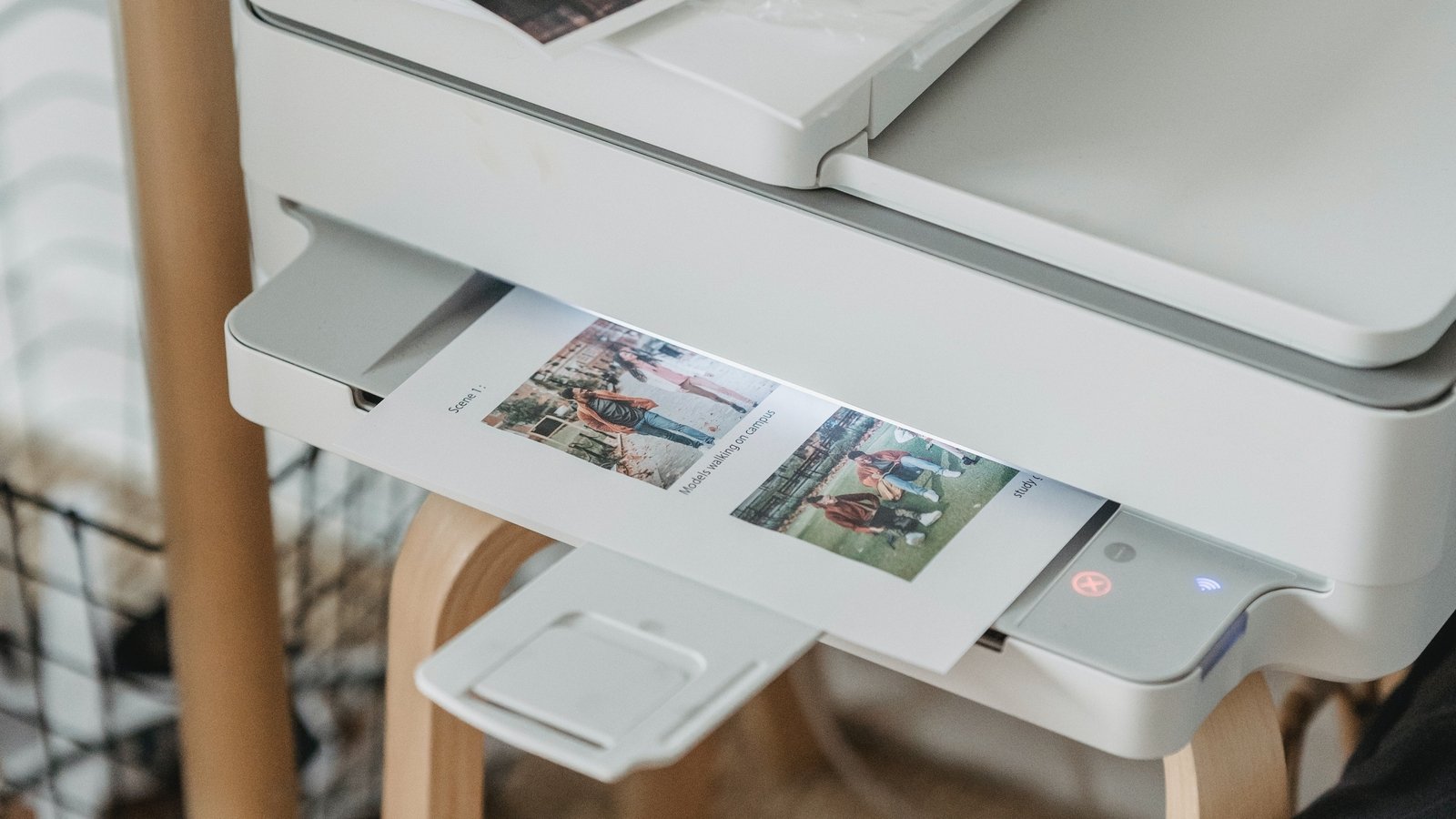
If there is one piece of technology that everyone loves to hate, it is the printer. For decades, printers have been the villains of the home office. We all have a story about trying to print a boarding pass five minutes before leaving for the airport, only to be told that the printer is “Offline” or out of magenta ink when we just wanted to print in black and white. It is a universal frustration that unites us all. But I have some good news for you. In 2026, printer technology has finally caught up with the rest of our digital lives. The days of hunting for lost CD-ROMs, dealing with massive tangled cables, and downloading sketchy drivers from the internet are largely behind us.
Today, setting up a printer or scanner is designed to be a “mobile-first” experience. It is cleaner, faster, and much more reliable than it was ten years ago. However, manufacturers still like to try and trick us into installing unnecessary software or signing up for expensive ink subscriptions we don’t need. Setting up your device correctly from the very first moment is the secret to having a happy relationship with it. If you do it right, your printer will sit quietly in the corner and work every single time you need it. If you do it wrong, it will be a constant source of headaches. This guide is going to walk you through the entire process of unboxing, connecting, and maintaining your printer and scanner in simple, plain English. We are going to bypass the marketing fluff and focus on getting your machine running perfectly so you can print your photos, documents, and homework without ever wanting to throw the machine out the window.
Unboxing Your Printer: Finding the Perfect Spot and Removing the Blue Tape
The setup process begins the moment the box arrives at your door. It might sound silly, but where you put your printer matters almost as much as how you connect it. In the past, printers had to be tethered to the computer with a short USB cable, which meant they took up valuable desk space. In 2026, almost every printer is wireless. This means you have the freedom to put it anywhere in your house. I recommend finding a spot that is close to a power outlet but out of the way. A bookshelf in the hallway or a small table in the corner of the living room is perfect. The only rule is that it must be within good range of your Wi-Fi router. If your phone has a weak signal in that corner, your printer will too, and a printer with a bad Wi-Fi connection is a printer that will constantly go “Offline.”
Once you have chosen the spot, it is time to unbox. Printer manufacturers are famous for using an excessive amount of blue or orange tape to hold the moving parts still during shipping. You need to be a detective here. Open every door, lift every lid, and pull out every paper tray. You will find tape hidden in places you didn’t expect. There is often a piece of Styrofoam or plastic hidden inside the machine where the ink cartridges go. If you turn the printer on without removing this, the machine will make a horrible grinding noise and give you an error message immediately. Take your time. Peel off every strip of blue tape you see. Check the back panel and the bottom paper feed. Once you are sure it is naked, plug it into the wall. Do not plug it into your computer yet. In fact, you might never need to plug it into your computer at all.
Connecting to Wi-Fi: The End of USB Cables and Complicated Drivers
This is the step where most people get nervous, but in 2026, it is actually the easiest part. We have entered the era of “Driverless Printing.” In the old days, you had to install a specific piece of software (a driver) that taught your computer how to talk to your specific printer model. Today, almost all devices use a universal language called IPP (Internet Printing Protocol), AirPrint (for Apple), or Mopria (for Android). This means your devices already know how to talk to the printer; they just need to be on the same network.
Most modern printers usually have a small touchscreen. The easiest way to connect is to use that screen. Go to the “Network” or “Wi-Fi” settings menu, tap “Wireless Setup Wizard,” and find your home network in the list. Type in your Wi-Fi password carefully. It is tedious to type on a small screen, but you only have to do it once. Once the printer says “Connected,” you are 90% done.
If your printer doesn’t have a screen, or if typing the password is too hard, you can use the “WPS Method” if your router supports it. You press the WPS button on your router, then press the Wi-Fi button on your printer, and they will find each other and connect automatically within two minutes. Another option is using the manufacturer’s mobile app, which uses Bluetooth to find the printer and sends the Wi-Fi password from your phone to the printer securely. This brings us to the next crucial step: mastering the mobile app.
How to Print Directly From Your iPhone or Android Device
In 2026, we do most of our work on our phones. We get emails, sign contracts, and view photos on these handheld screens. It makes no sense to have to email a document to your computer just to print it. Setting up mobile printing is a superpower that will save you so much time.
If you have an iPhone or iPad, you don’t need to install anything. Apple’s “AirPrint” technology is built right in. As long as your phone and your printer are on the same Wi-Fi network, you just tap the “Share” button on any document or photo, scroll down to “Print,” and your printer will magically appear in the list. It is seamless. You can choose double-sided, black and white, or color right from that screen.
If you are on Android, the experience is very similar thanks to the “Mopria” print service, which is built into modern versions of Android. However, for both platforms, I actually recommend downloading the official app from your printer manufacturer (like HP Smart, Epson iPrint, or Canon PRINT). While you don’t need it to print, these apps give you extra controls. They let you check exactly how much ink is left, run maintenance cleaning cycles, and most importantly, use the scanner remotely. Installing this app connects your phone to the printer’s brain, giving you full control without ever having to stand up and press buttons on the machine itself.
Adding Your Printer to Windows and Mac Computers Without Bloatware
Now let’s talk about your computer. If you have a laptop or desktop, you will want to print from there too. The trap here is searching Google for “Setup my printer.” If you do that, you will land on websites that try to trick you into downloading massive software packages filled with ads and unnecessary tools.
On a Mac, the process is incredibly clean. Open “System Settings,” scroll down to “Printers & Scanners,” and click the “Add Printer” button. Your Mac will scan the Wi-Fi network and see your printer. Click it, and click “Add.” That is it. You do not need to download a driver from the website. macOS uses AirPrint to talk to the printer instantly.
On Windows 11 or 12, it is just as easy. Go to “Settings,” then “Bluetooth & devices,” then “Printers & scanners.” Click “Add device.” Windows will search for printers on your network. When it pops up, click “Add device.” Windows will automatically set it up using a universal driver. The only time you should ever go to the manufacturer’s website to download software is if you have a very expensive, professional photo printer that needs specific color management tools. For a regular home office printer, the built-in Windows and Mac tools are cleaner, faster, and won’t slow down your computer with background programs.
Setting Up Your Scanner for High-Quality Digital Documents
Printing is putting ink on paper; scanning is getting paper onto your screen. In a world that is going paperless, a good scanner setup is essential for digitizing old photos, tax documents, and receipts. Most home printers are “All-in-Ones” that have a flatbed scanner glass on top.
The best way to scan in 2026 is actually wireless. Remember that mobile app I told you to download earlier? Open it on your phone. Place your document on the printer glass. On your phone screen, tap “Scan.” The printer will scan the page and send the image directly to your phone screen. From there, you can save it as a PDF or a JPEG image, or email it instantly. This is much faster than scanning to a computer and then trying to find where the file was saved.
If you are scanning a stack of documents, look for an “ADF” (Automatic Document Feeder) on top of your printer. This is the tray where you can put 20 pages at once. The setup trick here is to make sure you select “Source: Feeder” in your scanning app settings. Also, pay attention to the “DPI” (Dots Per Inch) setting. For regular text documents, 300 DPI is perfect. It is clear and the file size is small. If you are scanning old family photographs to preserve them, bump that setting up to 600 DPI or even 1200 DPI. It will take much longer to scan, but you will capture every tiny detail and grain of the photo for the future.
Managing Ink and Toner: Smart Subscriptions vs Buying Cartridges
The most controversial part of owning a printer is buying ink. It often feels like liquid gold. In recent years, companies have pushed “Ink Subscription” services very hard. This is where your printer talks to the internet, tells the company when you are running low, and they automatically mail you new cartridges before you run out. You pay a monthly fee based on how many pages you print, not how much ink you use.
Should you set this up? It depends on your habits. If you print a lot of full-color photos or homeschooling worksheets, a subscription service can actually save you a lot of money. You don’t have to worry about buying expensive cartridges; they just show up. However, if you only print one or two pages a month—maybe a shipping label here and there—do not sign up. You will end up paying a monthly fee for something you barely use.
If you choose not to use a subscription, you need to be smart about buying cartridges. The setup tip here is to look for “XL” or “High Yield” cartridges. They cost a little more upfront, but they contain double or triple the amount of ink, making the cost per page much lower. Also, never unplug your inkjet printer from the wall to turn it off. Always use the power button. When you use the button, the printer “parks” the ink heads in a sealed cap to prevent them from drying out. If you just pull the plug, the heads are left exposed to air, and your ink will dry up and clog, wasting your money.
Troubleshooting Common Printer Errors: What to Do When It Says Offline
Even with perfect setup, there will come a day when you hit “Print” and nothing happens. The computer says “Printer Offline.” Do not panic. You usually do not need to reinstall everything. In 2026, this is almost always a Wi-Fi “handshake” issue. The printer and the router just stopped talking to each other for a second.
The fix is the “Power Cycle Dance.” Turn off your printer. Then, turn off your Wi-Fi router (unplug it for 10 seconds). Plug the router back in and wait for your internet to come back online. Then, turn the printer back on. This forces them to re-introduce themselves and establish a fresh connection. This fixes the “Offline” error 90% of the time.
If that doesn’t work, checking the “Print Spooler” on Windows is the next step. Sometimes a corrupt document gets stuck in the queue, blocking everything behind it like a traffic jam. Go to your printer settings, open the “Print Queue,” and cancel all documents. Once the queue is empty, try printing again. It is rarely a broken printer; it is usually just a confused digital traffic jam.
Securing Your Network Printer from Hackers and Unwanted Guests
We don’t often think of printers as security risks, but in 2026, everything connected to the internet is a potential door for hackers. A printer is a computer. It has a hard drive, an operating system, and a connection to your home network. If you don’t secure it, neighbors could print funny pictures on your paper, or worse, hackers could use it to get into your network.
The first step in security setup is changing the “Default Password.” Every printer comes with a web interface where you can change settings. The login is usually “admin” and the password is “password” or blank. Change this immediately. You can find the IP address of your printer in the network settings, type that number into a web browser, and access the security menu.
You should also turn off “ePrint” or “Remote Printing” if you don’t use it. This is the feature that gives your printer its own email address so you can print from anywhere in the world. While cool, it is a vulnerability. If you don’t need to print from a coffee shop in Paris to your home in New York, turn it off. Finally, make sure “Firmware Updates” are set to automatic. Just like your phone updates to fix bugs, your printer needs updates to patch security holes. Enable auto-updates in the settings menu so you are always protected without thinking about it.
Enjoying a Stress-Free Printing Experience
Setting up a printer and scanner doesn’t have to be a nightmare. The technology has evolved to be helpful, invisible, and efficient, but it requires you to be proactive during the setup phase. By choosing the right location, removing all the packaging, connecting via Wi-Fi instead of cables, and mastering the mobile app, you turn a clunky machine into a seamless part of your digital life.
Remember that you are in control. You don’t have to install the bloatware. You don’t have to sign up for the ink subscription if it doesn’t fit your budget. You can choose to use simple, built-in tools like AirPrint and Windows default drivers to keep your computer clean. When you take the time to set it up correctly—securing the network, understanding the scanner settings, and knowing how to troubleshoot a Wi-Fi glitch—you remove the stress. You gain the ability to turn your digital ideas into physical reality with the tap of a button, and in a world that is increasingly trapped behind glass screens, holding a physical photo or document in your hand is still a special feeling. Treat your printer with a little respect during setup, and it will serve you faithfully for years to come.